|
|
| (26 intermediate revisions by 7 users not shown) |
| Line 1: |
Line 1: |
| =Playing Spring on a LAN= | | =Playing on a LAN= |
|
| |
|
| ==Introduction== | | ==Introduction== |
| Line 6: |
Line 6: |
| First, you must have a working LAN. Obviously this is not within the scope of this article, so you are on your own there. | | First, you must have a working LAN. Obviously this is not within the scope of this article, so you are on your own there. |
|
| |
|
| Once you have your network working, you can proceed. You must first install the following items: | | Once you have your network working, you can proceed. You must first install the [[Download|Latest version of Spring]]. |
| | |
| '''Server Machine'''
| |
| *[http://springrts.com/download.php Latest version of the Lobby server]
| |
| *[http://www.java.com/en/download/manual.jsp Java Runtime Environment]
| |
| | |
| '''Client Machine(s)'''
| |
| *[http://springrts.com/download.php Latest version of Spring]
| |
| That's it!
| |
|
| |
|
| We will now discuss startup and configuration. | | We will now discuss startup and configuration. |
|
| |
|
| ==Running the Server==
| | =Running the Server= |
| | |
| | |
| Hosting the server is actually very easy. First, the host computer must install the [http://www.java.com/en/download/manual.jsp Java Runtime Environment].
| |
| | |
| Once that is installed, you need to setup the server. Currently there are 2 methods of doing this, the easy way and the slightly longer way.
| |
| | |
| | |
| The easy way is to goto [http://www.darkstars.co.uk darkstars.co.uk] and get AFLan Server, which will give you an executable jar package that for most people is a simple extract and double click process to run, and comes complete with GUI and traffic window for easy admin, aswell as a version with LAN mode turned fof should you wish to host a new server online rather than on a LAN.
| |
| | |
| [http://www.darkstars.co.uk http://img54.imageshack.us/img54/659/lanserver7cf.jpg]
| |
| | |
| | |
| If using the longer method, the host then downloads the
| |
| [http://spring.clan-sy.com/download.php Lobby server] and extracts the ZIP file anywhere on his hard drive. For this article, we will assume the server software has been extracted to a sub-directory of the Spring folder named "server"; however, in practice, it does not matter where the server software is located.
| |
|
| |
|
| [[Image:lanserver.gif]] | | currently there are two lobby server available: |
| | * [[uberserver]] (recommonded, is used for official server) |
| | * [[SpringLS]] (unmaintained, broken with current lobby clients) |
|
| |
|
| The host then opens the directory the server files are in and finds the file "LanServer.bat". Double click this file. A command prompt window should come up and not go away. This is a good thing, that means it is working.
| | =Joining the local lobby server= |
|
| |
|
|
| |
|
| ==Configuring the Server==
| | After the server has successfully been started, the players have to log in the local lobby server by entering its IP followed by ":8200" (to specify the port) in the server field of their lobby clients (SpringLobby by default). The player hosting the lobby server can use "localhost:8200" or "127.0.0.1:8200" instead of his own IP. If running uberserver, you must first register your nickname. The nickname must not contain space nor special characters. Once the IP & port are entered in the server field, go to the register tab, enter a nickname and password, and click "Ok". Accept the terms of use by clicking "Yes" when they pop up. Then log in using the registered nickname. |
|
| |
|
| | [[Image:Connect_to_lan_lobby-withnote.png]] |
| | [[Image:Register_on_lan_lobby.png]] |
|
| |
|
| After the server has successfully been started, the host then opens TASClient.exe, which is in the main Spring directory. The host should then open the Options dialog in the client, and set the "Server address" field to "localhost".
| | Once every one is logged into the local lobby server you can host battle in the usual way and play spring in your LAN. |
|
| |
|
| [[Image:lan_host.gif]]
| | =How to get the lobby server IP= |
| | |
| Make sure you also have a nickname set in the "Account" section of the options menu. You do not need a password for LAN play.
| |
| | |
| Click apply and close, then hit the red connect button. If you have started up the LanServer correctly, it should connect regularly and put you in the #main chat room.
| |
| | |
| Now that we have that configured and working, you need to find your network IP address for the client machines. If you already know how to get this or what it is, you can skip down to the next section on configuring client machines.
| |
| | |
| To get your network IP is a very simple process. Click the "Start" button in Windows, then go to "Run". Type in "cmd" there. This will open up another command prompt.
| |
| | |
| In this command prompt, type "ipconfig". It will dump out information for every connection your computer has; don't worry, we only need one line of information here. Look for the section of the output that reads something like "Ethernet adapter Local Area Connection:". This is the adapter we want. However, it will be called whatever your LAN connection is called. For example, if you have called your network connection "Home Network", the prompt would read "Ethernet adapter Home Network:".
| |
| | |
| Under that category, find the line that says "IP Address". Write down the number it gives you on the right. This is the IP the client machines will connect to.
| |
|
| |
|
| | The player hosting the lobby server has to give his IP to all the players in the LAN. He can retrieve his IP by doing this: |
| | ==Windows== |
| | * Press ''Windows Key + R'' |
| | [[Image:Windows-run-start-menu.gif]] |
| | * Type "cmd" |
| | * Click "run" |
| | * In the terminal window, type "ipconfig" |
| [[Image:lan_hostip.gif]] | | [[Image:lan_hostip.gif]] |
|
| |
|
| You're done with the host machine now. It's time to go set up the client machines.
| | ==Linux== |
| | | * Open a terminal and type: ifconfig |
| | |
| ==Configuring the Clients== | |
| | |
| | |
| Configuring the client machines is far easier. First make sure the clients are all running the same version of Spring as the host. Then start up "TASClient.exe" on each client's machine, and go to the Options menu. Instead of typing in "localhost" here, however, you must type in the host machine's IP address we just retrieved. Again, make sure to go to the "Account" tab and enter a nickname for each client while you're at it.
| |
| | |
| [[Image:lan_client.gif]]
| |
| | |
| Once you have entered the information on the client machines, click Apply and close and hit the red connect button. The clients should connect to the host and go to the same #main chat room as the host machine.
| |
| | |
| That's it! Once all the client machines are connected with TASClient, '''anyone''' can click Battle Screen and host the game itself. The other players just need to join the game and agree on the settings and rules ;)
| |
|
| |
|
| [[Category:Playing]] | | [[Category:Lobby]] |
Playing on a LAN
Introduction
Hosting a LAN game of Spring is very simple.
First, you must have a working LAN. Obviously this is not within the scope of this article, so you are on your own there.
Once you have your network working, you can proceed. You must first install the Latest version of Spring.
We will now discuss startup and configuration.
Running the Server
currently there are two lobby server available:
- uberserver (recommonded, is used for official server)
- SpringLS (unmaintained, broken with current lobby clients)
Joining the local lobby server
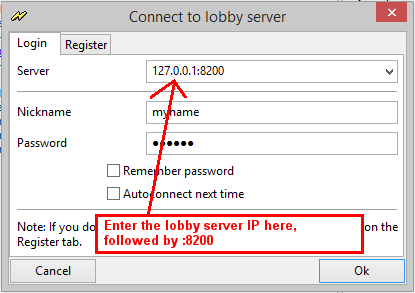
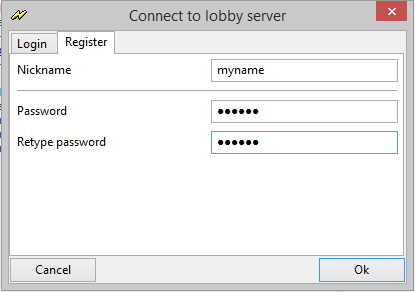
After the server has successfully been started, the players have to log in the local lobby server by entering its IP followed by ":8200" (to specify the port) in the server field of their lobby clients (SpringLobby by default). The player hosting the lobby server can use "localhost:8200" or "127.0.0.1:8200" instead of his own IP. If running uberserver, you must first register your nickname. The nickname must not contain space nor special characters. Once the IP & port are entered in the server field, go to the register tab, enter a nickname and password, and click "Ok". Accept the terms of use by clicking "Yes" when they pop up. Then log in using the registered nickname.
Once every one is logged into the local lobby server you can host battle in the usual way and play spring in your LAN.
How to get the lobby server IP
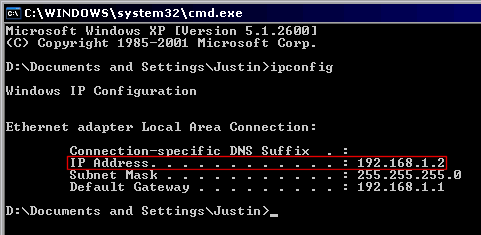
The player hosting the lobby server has to give his IP to all the players in the LAN. He can retrieve his IP by doing this:
Windows
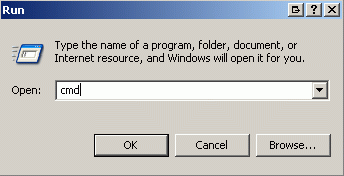
- Type "cmd"
- Click "run"
- In the terminal window, type "ipconfig"
Linux
- Open a terminal and type: ifconfig


